
Turning on/off this product
Turning on this product
Note
When a message prompting update appears on this product or the MiRZA app, update to the latest software by following screen instructions.
Tip
-
Perform the initial settings when you turn on this product for the first time.
-
Turn on the Bluetooth® and location information features on your smartphone beforehand.
-
-
Press the power button of this product.
-
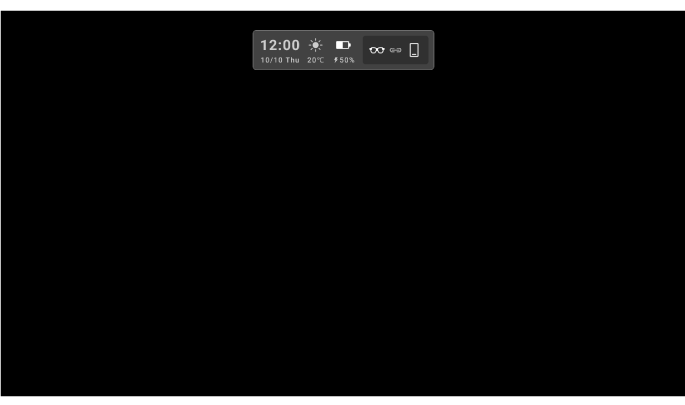
The standby screen of this product appears.
Tip
Turn on your smartphone first (while the Home screen, the lock screen, etc. is displayed), then turn on this product.
-
-
-
Launch the MiRZA app on your smartphone.
-
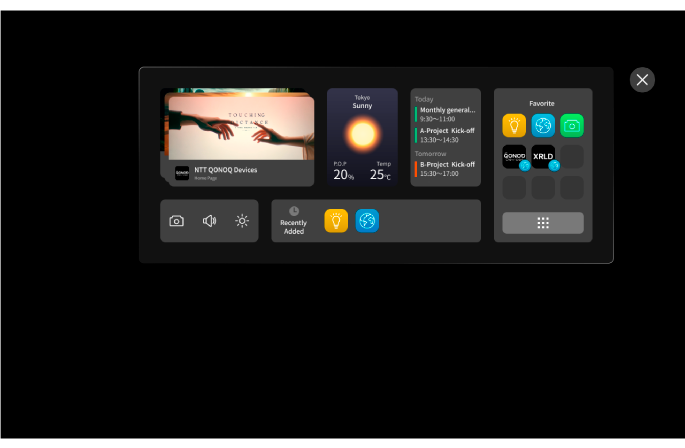
This product starts the linkage feature with your smartphone afterwhile and Main Launcher appears.
Tip
-
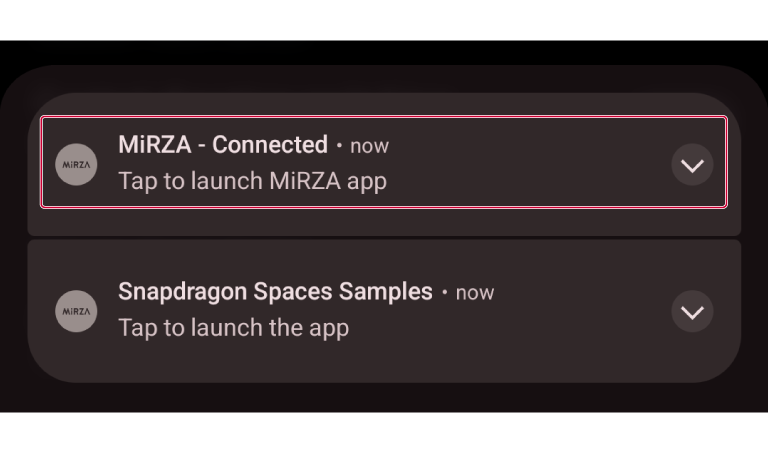
The notification indicating connection status appears on your smartphone when the linkage feature with your smartphone starts.
-
When the linkage feature with your smartphone is complete, the notification of “Connected” appears on your smartphone. Tap the notification to launch the MiRZA app.
-
When you launch the MiRZA app before turning on this product, a message appears on your smartphone. Tap [Launch Glasses] or [Tap to launch MiRZA app] to start the linkage feature with this product.
Tip
Set “App Launch Assistant” in advance so that you can launch the Snapdragon Spaces-compatible apps and use them without launching the MiRZA app.
In that case, operations are as follows.-
When the linkage feature with your smartphone is complete, the notification indicating launch of Snapdragon Spaces-compatible apps appears on your smartphone.
-
When “App Launch Assistant” has not been set, the notification does not appear. If the setting is changed after connecting to your smartphone, it will take effect at the next connection.
-
When you tap the notification for the Snapdragon Spaces-compatible app, the Snapdragon Spaces-compatible app launches.
-
The notification on your smartphone will disappear when the linkage feature with your smartphone ends, such as by turning off this product.
-
To delete the notification for the Snapdragon Spaces-compatible app, swipe it sideways from the notification area on your smartphone. (To display it again, restart this product.)
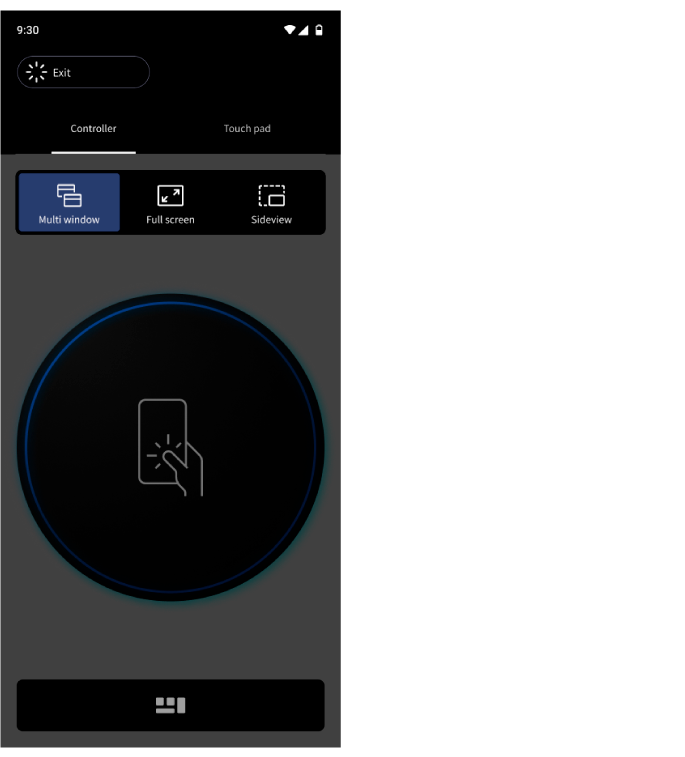
The control screen appears on the MiRZA app.
Tip
When you connect (pair) this product with a non-Snapdragon Spaces technologies-compatible smartphone, Main Launcher does not appear. The linkage feature of your smartphone cannot be used. Also, the control screen does not appear on the MiRZA app.
-
-
Note
If a connection between this product and your smartphone resulted in failure, this product does not start the linkage feature with your smartphone.
In this case, the app top screen appears on the MiRZA app. Tap [Launch Glasses] to start connecting your smartphone with this product.
Turning off this product
-
-
Press and hold the power button of this product for more than 3 seconds.
-
The Shut down dialog appears and this product will be turned off afterwhile.
-
-
-
Exit the MiRZA app on your smartphone.
-
-
Tip
This product automatically turns off in approximately 5 minutes after you take it off from your face at the default setting.
When the power is on, the LED blinks white.
Turning on/off the screen of this product
-
-
Press the power button of this product.
-
Each time you press the power button, the screen of this product turns on or off.
Also, when the screen is turned off while launching the MiRZA app, the notification will appear on your smartphone indicating that the glasses' screen is off.
-
Auto standby feature
-
This product automatically turns off the screen in approximately 5 seconds after you take it off from your face while the screen is on.
-
This product automatically turns on the screen when you wear it while the screen is off.